Posts

How to View Saved Passwords on your google account - Android / iOS

Image
How to View Saved Passwords on your google account - Android / iOS Like - Comment - Share this Video https://youtu.be/SdAVlu1Q3nA Steps to view saved passwords on google account - first of all, open any web browser app on your mobile device. - here, I am going to use a chrome app, but you can use any web browser app you like. - now search for my google account. - open this link https://myaccount.google.com/security - tap on go to google account. - now, login to your account. - now, we are on our google account. - now, to view the saved passwords, simply click on security. - scroll down and head over to password manager. - tap on password manager. - now here you can see all your saved passwords. - now let say we want to see our instagram account password, - then simply tap on instagram. - now we need to verify our action by providing our google password. - now we can view, edit or delete the password. How to View Saved Passwords on google chrome brow...

how to view saved passwords on chrome app - android ios

Image
How to View Saved Passwords on Chrome App - Android / iOS Like - Comment - Share this Video https://youtu.be/RmRFwxyefCs steps to view, edit or delete saved passwords on google chrome app - Open Chrome app on your mobile or tablet - click on 3 dots, now you can see settings tab simply tap on it. - now, if you already signed in to your account, then first, sign out from the account, so that, chrome only shows passwords, that are saved on your chrome app. - now, you can view saved passwords on your chrome app, simply tap on passwords. - now, here you can see all your saved passwords. - to view, edit or delete your passwords, simply tap on the password. - tap on the eye icon to view the password. - now you need to unlock your phone to view the password. - here we can see the password. How to View Saved Passwords on google chrome browser - Desktop https://youtu.be/KdjKS2ZgG_M ( Linked Sites and Apps ) View Saved Passwords on Google Account https://youtu.be/GNUNv3L3YXM ...

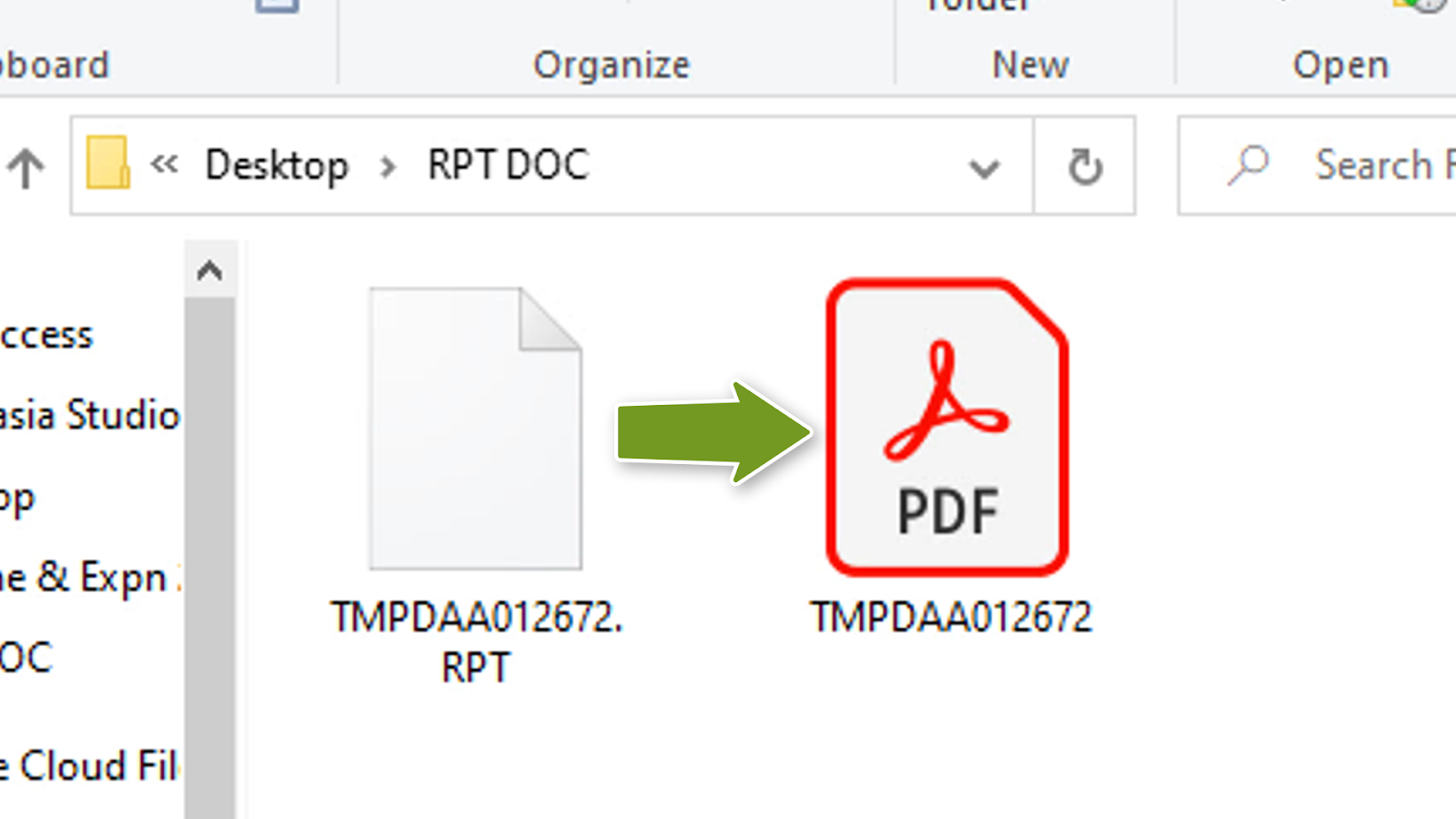
Convert RPT RPF file to PDF

Image
How to Convert RPT file to PDF online for free | Convert RPF file to PDF https://youtu.be/vRjcbT55blg If this video 𝐇𝐄𝐋𝐏𝐅𝐔𝐋 then please 𝐋𝐈𝐊𝐄 - 𝐒𝐇𝐀𝐑𝐄 - 𝐂𝐎𝐌𝐌𝐄𝐍𝐓 - 𝐒𝐔𝐁𝐒𝐂𝐑𝐈𝐁𝐄 ✪ Steps to Convert RPT file to PDF online for free | Convert RPF file to PDF - Open this link https://bit.ly/RPT-RPF-to-PDF - click on upload your RPT OR RPF file - Select your RPT OR RPF file from your device. - select convert options, you can convert into PDF, PNG, JPEG, BMP, TIFF, GIF, ICO - here we want to convert RPT OR RPF to PDF, make sure you select PDF. - click on download converted file - our file converted into pdf. - Done

Change Account type to Administrator on windows

Image
How to Change Account type to Administrator on windows laptop pc https://youtu.be/cbL93g0VHo4 If this video 𝐇𝐄𝐋𝐏𝐅𝐔𝐋 then please 𝐋𝐈𝐊𝐄 - 𝐒𝐇𝐀𝐑𝐄 - 𝐂𝐎𝐌𝐌𝐄𝐍𝐓 - 𝐒𝐔𝐁𝐒𝐂𝐑𝐈𝐁𝐄 Steps to make a new user account on windows laptop and pc - click on start up menu - click on settings - click on accounts - click on Family & users - now you can see all users which we created on our device, simply click on on the user where you want to change account role - click on change account type - select account type as administrator - click on ok - now we successfully changed account type to administrator on our windows device. - done. How to take a screenshot on a PC or Laptop any Windows https://bit.ly/3vbmNPz

How to View Saved Password on your google chrome browser - Desktop

Image
How to View Saved Password on your google chrome browser - Desktop https://youtu.be/KdjKS2ZgG_M ✪ Steps to View Saved Password on your google chrome browser - Desktop - Open Chrome Browser if you don't - Tap on 3 dots which for customize and control ( located on top right corner ) - Click on settings - click on autofill - click on password - for here you can view, edit and delete the saved password - click on view icon to view saved password - click on 3 dots beside site password to copy, edit or delete passwords - chrome ask you to provide your device account password to view password - done

Take a Scrolling Screenshot for Any Website on Any Device ( Windows, Laptop, PC, Mac, Mobile, Tablet )

Image
Take a Scrolling Screenshot for Any Website on Any Device ( Windows, Laptop, PC, Mac, Mobile, Tablet ) https://youtu.be/P7B9gAFI8-I ✪ Steps to Take a Scrolling Screenshot for Any Website on Any Device ( Windows, Laptop, PC, Mac, Mobile, Tablet ) - First of open Any Web Browser on Your device - now open site-shot dot com website - now first add the website URL Where you want to get screenshot - turn on full size button to get whole page screen capture - now select the size for the snapshot - head over to image option and choose as your prefer one - click on download icon to save screenshot on our device - done. How to take a screenshot on a PC or Laptop any Windows https://youtu.be/gbJr0Cv95n8

How To Take Scrolling Screenshot on Phone Android

Image
How To Take Scrolling Screenshot on Phone Android https://youtu.be/SoN-zVn1sek How to take a screenshot on a PC or Laptop any Windows https://youtu.be/gbJr0Cv95n8 ✪ Steps to Take Scrolling Screenshot on Phone Android - First We Need to install the screenshot touch app in our android phone / tablet - so open google play store - search for screenshot - open screenshot touch app & install it - now open the page where you want to take Scrolling screenshot - now tap on share button and then tap on screenshot touch app - now we'll redirect to screenshot touch app - now wait for complete page load - tap on capture to take Scrolling screenshot - now screenshot saved in photo gallery - done