Posts

Showing posts with the label Laptop

how to take screenshot in laptop

Image
How to take a screenshot in pc and laptop any Windows Works in 2023 | 3 Easy Ways to how to screenshot on laptop https://youtu.be/gbJr0Cv95n8 00:00 | Intro 00:11 | Prt SC / SysRq Key 01:45 | Windows Key + Prt SC / SysRq Key 02:28 | Snipping Tool / Snip & Sketch ✪ Steps To Take Screenshot - Press Prt screen Button on your Laptop - Open Paint Tool - Click on Paste or press Ctrl + V - Edit Your Screenshot As you Want - Save It - Done ✪ Screenshot Automatically saved on Screenshot folder, simply find picture folder and then you can see screen shot folder how to take screenshot in laptop, how to screenshot on laptop, how to take screenshot on laptop
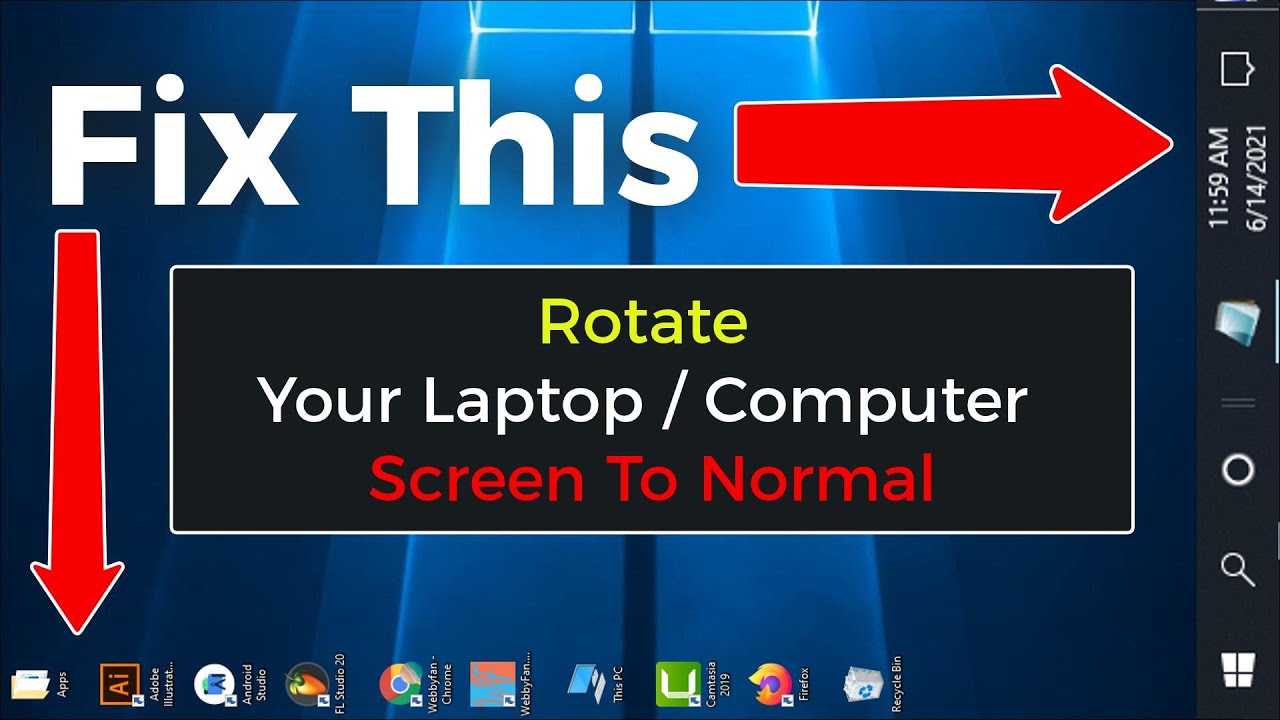
Rotate Your Laptop Computer Screen To Normal | How To Change Display Orientation in windows 10

Image
Rotate Your Laptop Computer Screen To Normal | How To Change Display Orientation in windows 10 https://youtu.be/kGUiP5G5W0c 00:00 | intro 00:12 | Method 1 Fixed by Keyboard Command 00:42 | Method 2 Fixed by Graphics Options 01:15 | Method 3 Fixed by Display settings ✪ Steps to Rotate Your Laptop Computer Screen To Normal | How To Change Display Orientation in windows 10 - Method 1: Press On Your Keyboard Ctrl + alt + 🢁 - Method 2: Right Click (any empty spot) on your desktop screen. - click on graphics options - click on rotation - click on rotate to 0 Degrees - Done. - Method 3: Right Click (any empty spot) on your desktop screen. - Click on Display Settings - go to display orientation - select landscape - done. ✪ Featured Videos: How to Rotate Laptop & Desktop Screen by Keyboard command | Change Display Orientation https://youtu.be/idAV_aTpJYE How To Return to the Normal Desktop Mode From Tablet Mode and Get...

How To Return to the Normal Desktop Mode From Tablet Mode and Get Rid of Pinned Tiles - Windows 10

Image
How To Return to the Normal Desktop Mode From Tablet Mode and Get Rid of Pinned Tiles - Windows 10 https://youtu.be/wutqYvwkuNc 00:00 | intro 00:10 | Method 1 Return to Normal Desktop Mode by Tablet Settings 01:05 | Method 2 switch to Desktop Mode by Notification Tab. ✪ Steps to Return to the Normal Desktop Mode From Tablet Mode and Get Rid of Pinned Tiles - Windows 10 - Method 1: click on settings icon ( left bottom side) - click on system - click on tablet - [ @ when i sign in box ]select never user tablet mode - [ @ when i use this device as a tablet ] select don't switch to tablet mode - click on additional tablet settings - turn off tablet mode - done. - Method 2: click on notification icon ( right bottom side) - Turn off tablet mode. - done. ✪ Featured Videos: How to Rotate Laptop & Desktop Screen by Keyboard command | Change Display Orientation https://youtu.be/idAV_aTpJYE Rotate Your Laptop Comput...

How to Rotate Laptop & Desktop Screen by Keyboard command | Change Display Orientation

Image
How to Rotate Laptop & Desktop Screen by Keyboard command | Change Display Orientation https://youtu.be/idAV_aTpJYE 00:00 | Intro 00:12 | Rotate Screen to Portrait View Mode ( 90 Degrees ) 00:42 | Rotate Screen to Portrait (Flipped) view mode ( 270 Degrees ) 01:12 | Rotate Screen to Landscape View Mode ( 0 Degrees ) 01:40 | Rotate Screen to Landscape (Flipped) View Mode ( 180 Degrees ) ✪ Steps to Rotate Laptop & Desktop Screen by Keyboard command | Change Display Orientation - Change Screen to ( 0 Degrees ): Press On Your Keyboard Ctrl + alt + 🢁 - Change Screen to ( 90 Degrees ): Press On Your Keyboard Ctrl + alt + 🢂 - Change Screen to ( 180 Degrees ): Press On Your Keyboard Ctrl + alt + 🢃 - Change Screen to ( 270 Degrees ): Press On Your Keyboard Ctrl + alt + 🢀 ✪ Featured Videos: Rotate Your Laptop Computer Screen To Normal | How To Change Display Orientation in windows 10 https://youtu.be/kGUiP5G5W0c How To Return to the Normal Desktop M...