Posts

Showing posts with the label Google AdSense

How to Check YouTube Earnings in Google AdSense Account

Image
How to Check YouTube Earnings in Google AdSense Account Like & Share this Video https://youtu.be/DnXnZ4LVi5Q ❖ Time Stamp 00:00 Intro 00:05 Check YouTube Earnings on Google AdSense 01:47 Our Recommendation ❖ Steps To Check YouTube Earnings in Google AdSense Account - Open Google AdSense https://www.google.com/adsense - Login to Your Account - Click on Reports - now click on filter tab - Click on Products - Select YouTube Host - Now You can view YouTube Earnings - Select time frame - click on save as to save report for quick check - Done.

How to Link Google AdSense with Google Analytics

Image
How to Link Google AdSense with Google Analytics https://youtu.be/OVCHWVH1Odo ✅ how to create Universal Analytics property ✅ Steps To Link Google AdSense with Google Analytics -first of all, make sure we created Universal Analytics property in Google Analytics. - Now, open google analytics. - click here, - click on Universal Analytics property for our website. - click on all web site data. - click on admin. - go to the product linking section. - now if you want to check your AdSense earning in google analytics. - then click on behavior. - click on publisher. - Now you can view your AdSense earning by website pages & referring domains. ✅ How To Add Google Analytics to Blogger Blog ✅ How To Add Blogger To Google Search Console | Submit Your Blogger Blog to Google Search Console ✅ How to Add Meta Tags In Blogger | Meta Tags Blogger Home Page, Posts | Enable Search Description

How To Create Google AdSense Account for Your Website

Image
How To Create Google AdSense Account for Your Website https://youtu.be/6JQWWHszkRc ✅ Steps to Create Google AdSense Account for Your Website - First of all, search for google AdSense. - open this link. https://www.google.com/adsense/start/ - click on get started. - now, type your website URL. - type your email address. - click on yes if you want email updates from AdSense. - click on save and continue. - now select your country. - accept the terms and conditions if you agree. - tick on yes. - click on create account. - now our google AdSense account is created. - click on get started. - now we need to add our payment address details. - first select the account type. - type your mail address. - click on submit. - now we need to add verification code on our website. - so simply copy this code and paste it into the Html of our website. - make sure you paste the code in head tags. - once you add code in your website. - then come back to this page and tick mark on ...

Fixed Can't find Google AdSense Linking option in Google Analytics

Image
Fixed Can't find Google AdSense Linking option in Google Analytics https://youtu.be/PYXkvTwAPc0 ✅ Steps Fixed Can't find Google AdSense Linking option in Google Analytics - First of all open your google analytics. - select your website from here. - Now go to the property section. - click on the create property. - type name of your website. - select reporting time zone. - select currency. - click on show advanced options. - turn on Create a Universal Analytics property. - now type your website link. - now if you already created google analytics 4 property. - then select Create a Universal Analytics property only. - click on next. - Now select the category for your website. - select your business size. - select the options which you want to use in google analytics. - click on create. - Now we successfully created Universal Analytics property for our website. - now go to product linking options. - click on AdSense linking. - select AdSense for content. - ...

How To Add Google AdSense code in head tags on Blogger Website

Image
How To Add Google AdSense code in head tags Blogger Website https://youtu.be/9a697NdIbAU ✅ Steps to Add Google AdSense code in head tags on Blogger Website - Copy the Google AdSense Code - Go Back to Blogger dashboard - Click on theme - Click on Customize. - Click on Edit Theme - now click anywhere in this html code. - now press control F in your keyboard. - now you can see the search box. - simply type here closing head tags. - now press enter on your keyboard. - now you can see the head tag with highlighted color. - now paste your google AdSense code above this tag. - now, update the theme file. - now we successfully added google AdSense code in our blogger website.

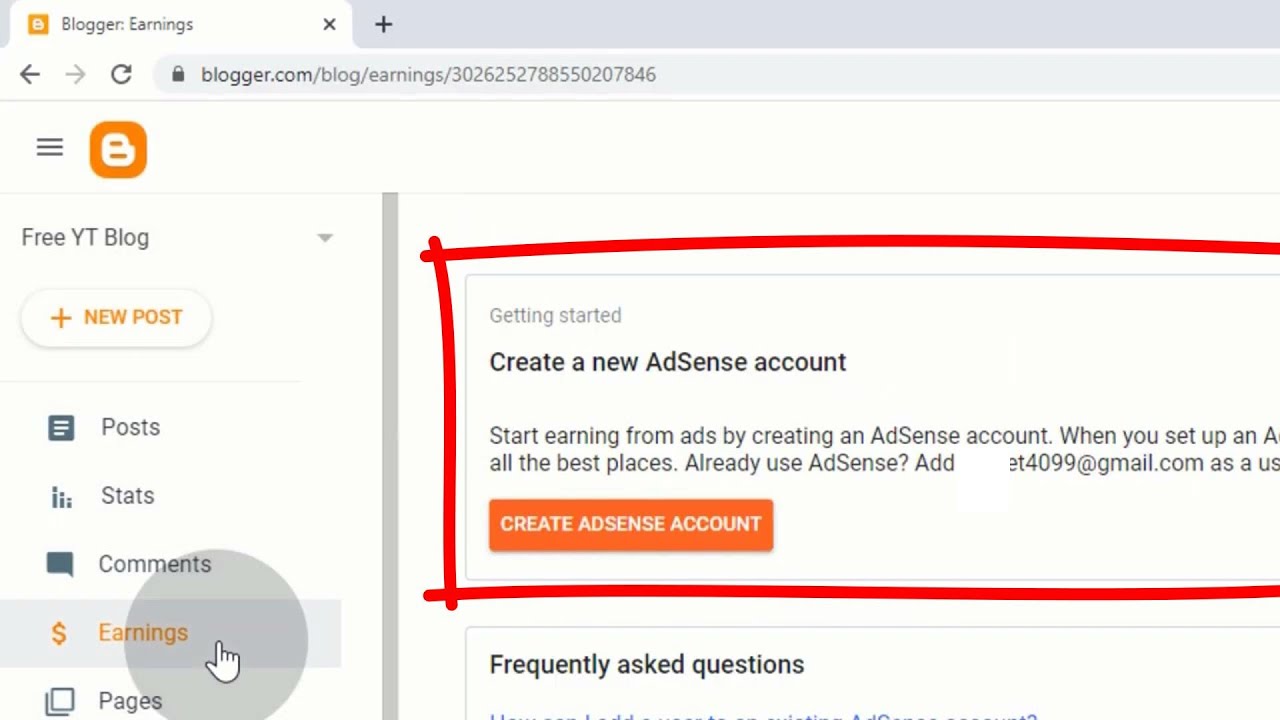
How To Add Blogger Blog to Google AdSense and Earn Money

Image
How To Add Blogger Blog to Google AdSense and Earn Money https://youtu.be/BW1h3eM2TWg

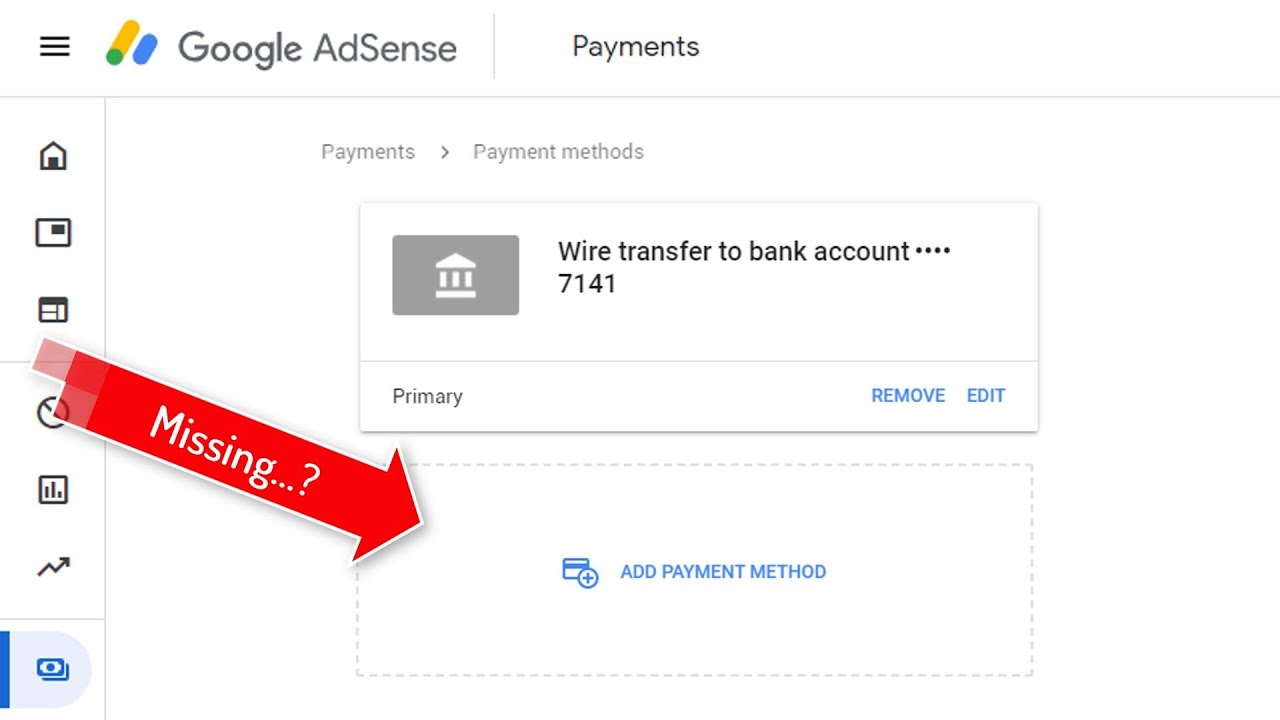
Missing Add Payment Method in Google AdSense

Image
No Option to Add Payment Method in Google AdSense / Missing Add Payment Method in Google AdSense https://youtu.be/1uOerRDMl3A Right There Are so many AdSense publisher face issue about missing add new payment method. we also Face same error & we contact AdSense help team and they said once your payout threshold reach, you can add new payment method. it's true when we reach Payout threshold we can add again new payment method. Once Our Google AdSense Payout threshold as Default $100 cross, Add Payment Option Enable Automatically.