Posts

Showing posts with the label Windows

Change Account type to Administrator on windows

Image
How to Change Account type to Administrator on windows laptop pc https://youtu.be/cbL93g0VHo4 If this video 𝐇𝐄𝐋𝐏𝐅𝐔𝐋 then please 𝐋𝐈𝐊𝐄 - 𝐒𝐇𝐀𝐑𝐄 - 𝐂𝐎𝐌𝐌𝐄𝐍𝐓 - 𝐒𝐔𝐁𝐒𝐂𝐑𝐈𝐁𝐄 Steps to make a new user account on windows laptop and pc - click on start up menu - click on settings - click on accounts - click on Family & users - now you can see all users which we created on our device, simply click on on the user where you want to change account role - click on change account type - select account type as administrator - click on ok - now we successfully changed account type to administrator on our windows device. - done. How to take a screenshot on a PC or Laptop any Windows https://bit.ly/3vbmNPz

How to Take a Scrolling Screenshot of Web Page - Desktop Chrome

Image
How to Take a Scrolling Screenshot of Web Page in Any Laptop / PC / MAC / Desktop https://youtu.be/5UwyWkgg6Ho ✪ 3 Easy Ways to Take Screenshot on a PC or Laptop https://youtu.be/gbJr0Cv95n8 ✪ Steps to Take a Scrolling Screenshot of Web Page in Any Laptop / PC / MAC / Desktop - First You need Google Chrome Browser Installed in Your Device - Once you Installed Google Chrome - Open Chrome Browser - click on customize and control icon ( top right corner ) - click on more tools - click on extensions - click on main menu ( top left corner ) - Click on open chrome web store - now search for GoFullPage - now, you can see GoFullPage - Full Page Screen Capture - Open the extension - click on add to chrome - click on add extension - now the extension added to chrome - now click on extension icon to view the extension which we just added - pin the extension - now, open the web page where you want to take Scrolling Screenshot - Now the extension take full page screenshot -...

How to Take Screenshot on a Laptop or PC Using Snip & Sketch Any Windows

Image
How to Take Screenshot on a Laptop or PC Using Snip & Sketch Any Windows https://youtu.be/etOKbJBV6Ws Take screenshot by Fullscreen Snip, Rectangular Snip, Freeform Snip, Window Snip ✪ 3 Easy Ways to Take Screenshot on a PC and Laptop https://youtu.be/gbJr0Cv95n8 ✪ Steps to Take Screenshot on a Laptop or PC Using Snip & Sketch - Open the Screen or Page Where you want to take screenshot - Now We Need to Open Snip & Sketch App - To Open Snip & Sketch App by Short key Windows Logo Key + Shift + S - or Simply click on start icon and search Snip & Sketch - click on the app - Click on new ( top left corner ) - now open screen snipping on the page - Simply Take screenshot by Fullscreen Snip, Rectangular Snip, Freeform Snip, Window Snip - Now Edit Screenshot with Touch Writing, Ballpoint Pen, Pencil, Highlighter, Ruler Eraser, image crop - Click on Save As ( top right corner) - Save Screenshot as your desire location - Done.

How To Enable / Disable The PrtScn button to open screen snipping ( Windows )

Image
How To Enable Disable The PrtScn button to open screen snipping ( Windows ) https://youtu.be/U53kZuSbzVI ✪ 3 Easy Ways to Take Screenshot on a PC or Laptop https://youtu.be/gbJr0Cv95n8 ✪ Steps to Enable / Disable The PrtScn button to open screen snipping - Click on Start Button - Click on Settings - Click on Ease of Access - Click on Keyboard - Go To Print Screen Shortcut - Turn on to Enable or Turn off to Disable - Done.

Where's Screenshot Saved in Laptop PC Windows

Image
Where's Screenshot Saved in Laptop PC Windows https://youtu.be/epUzxkcGxNI screenshot save location windows 10 ✪ 3 Easy Ways to Take Screenshot on a PC or Laptop https://youtu.be/gbJr0Cv95n8 ✪ Default Location For Screenshots Pictures Folder / Screenshots Folder ✪ Steps to Where's Screenshot Saved in Laptop PC Windows - Click on Start button & Search for Screenshots - Now you can see screenshots folders on results - simply click on the folder to get all your screenshots which you took by pressing "Window logo key" + PrtScn"

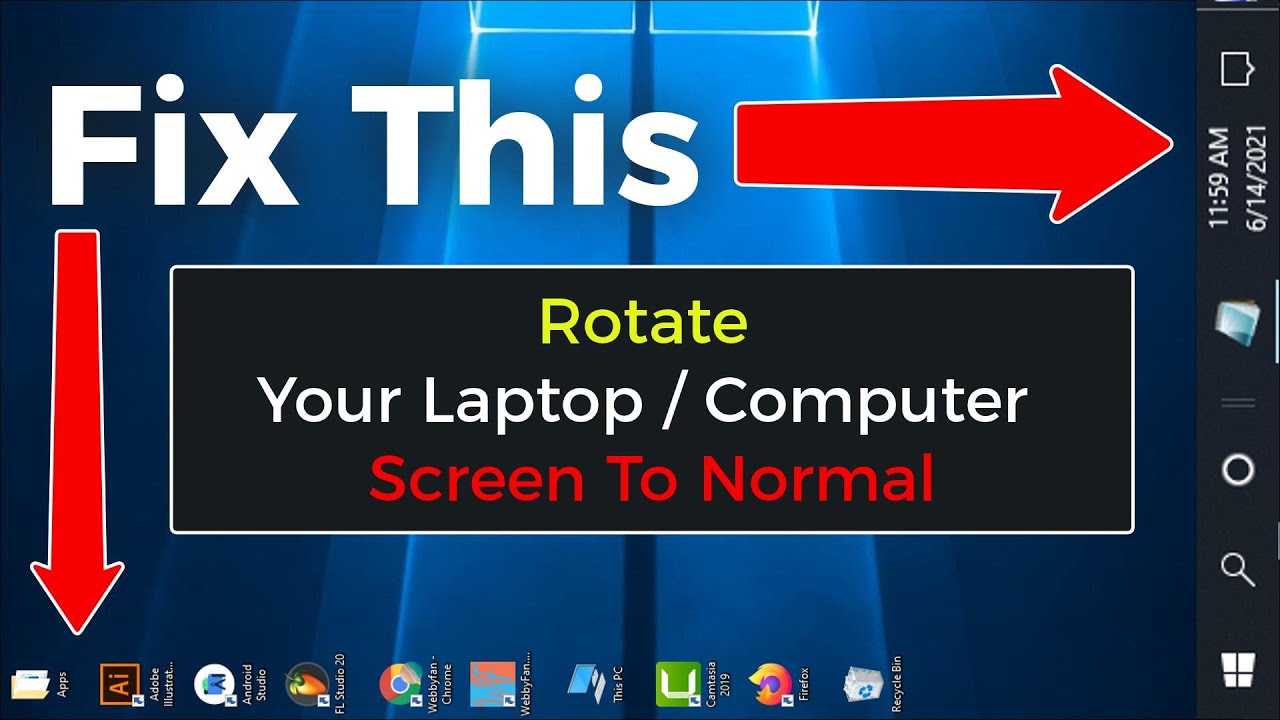
Rotate Your Laptop Computer Screen To Normal | How To Change Display Orientation in windows 10

Image
Rotate Your Laptop Computer Screen To Normal | How To Change Display Orientation in windows 10 https://youtu.be/kGUiP5G5W0c 00:00 | intro 00:12 | Method 1 Fixed by Keyboard Command 00:42 | Method 2 Fixed by Graphics Options 01:15 | Method 3 Fixed by Display settings ✪ Steps to Rotate Your Laptop Computer Screen To Normal | How To Change Display Orientation in windows 10 - Method 1: Press On Your Keyboard Ctrl + alt + 🢁 - Method 2: Right Click (any empty spot) on your desktop screen. - click on graphics options - click on rotation - click on rotate to 0 Degrees - Done. - Method 3: Right Click (any empty spot) on your desktop screen. - Click on Display Settings - go to display orientation - select landscape - done. ✪ Featured Videos: How to Rotate Laptop & Desktop Screen by Keyboard command | Change Display Orientation https://youtu.be/idAV_aTpJYE How To Return to the Normal Desktop Mode From Tablet Mode and Get...

How To Return to the Normal Desktop Mode From Tablet Mode and Get Rid of Pinned Tiles - Windows 10

Image
How To Return to the Normal Desktop Mode From Tablet Mode and Get Rid of Pinned Tiles - Windows 10 https://youtu.be/wutqYvwkuNc 00:00 | intro 00:10 | Method 1 Return to Normal Desktop Mode by Tablet Settings 01:05 | Method 2 switch to Desktop Mode by Notification Tab. ✪ Steps to Return to the Normal Desktop Mode From Tablet Mode and Get Rid of Pinned Tiles - Windows 10 - Method 1: click on settings icon ( left bottom side) - click on system - click on tablet - [ @ when i sign in box ]select never user tablet mode - [ @ when i use this device as a tablet ] select don't switch to tablet mode - click on additional tablet settings - turn off tablet mode - done. - Method 2: click on notification icon ( right bottom side) - Turn off tablet mode. - done. ✪ Featured Videos: How to Rotate Laptop & Desktop Screen by Keyboard command | Change Display Orientation https://youtu.be/idAV_aTpJYE Rotate Your Laptop Comput...

How to Rotate Laptop & Desktop Screen by Keyboard command | Change Display Orientation

Image
How to Rotate Laptop & Desktop Screen by Keyboard command | Change Display Orientation https://youtu.be/idAV_aTpJYE 00:00 | Intro 00:12 | Rotate Screen to Portrait View Mode ( 90 Degrees ) 00:42 | Rotate Screen to Portrait (Flipped) view mode ( 270 Degrees ) 01:12 | Rotate Screen to Landscape View Mode ( 0 Degrees ) 01:40 | Rotate Screen to Landscape (Flipped) View Mode ( 180 Degrees ) ✪ Steps to Rotate Laptop & Desktop Screen by Keyboard command | Change Display Orientation - Change Screen to ( 0 Degrees ): Press On Your Keyboard Ctrl + alt + 🢁 - Change Screen to ( 90 Degrees ): Press On Your Keyboard Ctrl + alt + 🢂 - Change Screen to ( 180 Degrees ): Press On Your Keyboard Ctrl + alt + 🢃 - Change Screen to ( 270 Degrees ): Press On Your Keyboard Ctrl + alt + 🢀 ✪ Featured Videos: Rotate Your Laptop Computer Screen To Normal | How To Change Display Orientation in windows 10 https://youtu.be/kGUiP5G5W0c How To Return to the Normal Desktop M...