Posts

Showing posts from June, 2021

How To Hide Post Author on MAXSEO Blogger Template

Image
How To Hide Post Author on MAXSEO Blogger Template https://youtu.be/Zg8xEumHBP8 ✅ Get The Code: https://bit.ly/2TYbFFp ✅ Steps To Hide Post Author on MAXSEO Blogger Template - First Copy the code from our website - Head Over to Blogger Dashboard. - Click layout - Click on theme designer - Click on Advanced option - Click on Add CSS. - Now Paste the code - Click on save. ✅ MAXSEO Blogger Theme Tutorials https://www.youtube.com/playlist?list=PL9bElQa0pIJx_X-2BlCXqW9HdgPGH4KWF ✅ Blogger Tutorials https://youtube.com/playlist?list=PL9bElQa0pIJx_X-2BlCXqW9HdgPGH4KWF ✅ Add Custom Domain To Blogger https://youtu.be/I67un-8VN7c ✅ Add Blogger To Google Search Console https://youtu.be/w4KaiqlnqSw ✅ Add Meta Tags In Blogger https://youtu.be/Ty2YZNYbOGI ✅ Make Free Website for YouTube Channel https://youtu.be/FRtTySVpuGM ✅ How To Make Free Blog Website https://youtu.be/oFTHEpr3cDo

How To Hide Powered by Blogger Footer Attribution from Your Blog

Image
How To Hide Powered by Blogger Footer Attribution from Your Blog https://youtu.be/hp2D74pD9VQ ✅ Get The Code: https://bit.ly/3dhPxwk ✅ Steps To Hide Powered by Blogger Footer Attribution from Your Blog - Copy the code from here https://bit.ly/3dhPxwk - head over to blogger dashboard - click on layout - click on theme designer - click on advanced option - select ADD CSS - paste the code - click on save - done ✅ Blogger Tutorials https://youtube.com/playlist?list=PL9bElQa0pIJx_X-2BlCXqW9HdgPGH4KWF ✅ Add Custom Domain To Blogger https://youtu.be/I67un-8VN7c ✅ Add Blogger To Google Search Console https://youtu.be/w4KaiqlnqSw ✅ Add Meta Tags In Blogger https://youtu.be/Ty2YZNYbOGI ✅ Make Free Website for YouTube Channel https://youtu.be/FRtTySVpuGM ✅ How To Make Free Blog Website https://youtu.be/oFTHEpr3cDo

How To Hide Post Tags on Home Page & YouMayLikeThese Posts ( MAXSEO Blogger Template )

Image
How To Hide Post Tags on Home Page & YouMayLikeThese Posts ( MAXSEO Blogger Template ) https://youtu.be/UaSV3VUkT0Q ✅ Get The Code: https://bit.ly/2TYbFFp ✅ Steps To Hide Post Tags on Home Page & YouMayLikeThese Posts ( MAXSEO Blogger Template ) - First Copy the code from our website - Head Over to Blogger Dashboard. - Click layout - Click on theme designer - Click on Advanced option - Click on Add CSS. - Now Paste the code - Click on save. ✅ MAXSEO Blogger Theme Tutorials https://www.youtube.com/playlist?list=PL9bElQa0pIJx_X-2BlCXqW9HdgPGH4KWF ✅ Blogger Tutorials https://youtube.com/playlist?list=PL9bElQa0pIJx_X-2BlCXqW9HdgPGH4KWF ✅ Add Custom Domain To Blogger https://youtu.be/I67un-8VN7c ✅ Add Blogger To Google Search Console https://youtu.be/w4KaiqlnqSw ✅ Add Meta Tags In Blogger https://youtu.be/Ty2YZNYbOGI ✅ Make Free Website for YouTube Channel https://youtu.be/FRtTySVpuGM ✅ How To Make Free Blog Website https://youtu.be/oFTHEpr3cDo ...

How To Hide Post Date on Hot Posts, Sidebar Posts & YouMayLikeThese Posts ( MAXSEO Blogger Theme )

Image
How To Hide Post Date on Hot Posts, Sidebar Posts & YouMayLikeThese Posts ( MAXSEO Blogger Theme ) https://youtu.be/C6UM-6IkAdI ✅ Get The Code: https://bit.ly/2TYbFFp ✅ Steps To Hide Post Date on Hot Posts, Sidebar Posts & YouMayLikeThese Posts ( MAXSEO Blogger Theme ) - First Copy the code from our website - Head Over to Blogger Dashboard. - Click layout - Click on theme designer - Click on Advanced option - Click on Add CSS. - Now Paste the code - Click on save. ✅ MAXSEO Blogger Theme Tutorials https://www.youtube.com/playlist?list=PL9bElQa0pIJx_X-2BlCXqW9HdgPGH4KWF ✅ Blogger Tutorials https://youtube.com/playlist?list=PL9bElQa0pIJx_X-2BlCXqW9HdgPGH4KWF ✅ Add Custom Domain To Blogger https://youtu.be/I67un-8VN7c ✅ Add Blogger To Google Search Console https://youtu.be/w4KaiqlnqSw ✅ Add Meta Tags In Blogger https://youtu.be/Ty2YZNYbOGI ✅ Make Free Website for YouTube Channel https://youtu.be/FRtTySVpuGM ✅ How To Make Free Blog Website https:...

How To Hide Comment on Specific post on Blogger

Image
How To Hide Comment on Specific post on Blogger https://youtu.be/GM7Neq5EjlY ✅ Steps To Hide Comment on Specific post on Blogger - Login to Your Blogger Account - Click on Posts - Now Open the post where you want to hide comment - go to options ( left side bottom ) - select option to turn off comment - Click on Publish - done. ✅ Blogger Tutorials https://youtube.com/playlist?list=PL9bElQa0pIJyH3kG90reEsHNByEunVmr0 ✅ Add Custom Domain To Blogger https://youtu.be/I67un-8VN7c ✅ Add Blogger To Google Search Console https://youtu.be/w4KaiqlnqSw ✅ Add Meta Tags In Blogger https://youtu.be/Ty2YZNYbOGI ✅ Make Free Website for YouTube Channel https://youtu.be/FRtTySVpuGM ✅ How To Make Free Blog Website https://youtu.be/oFTHEpr3cDo

How to Hide / Show Post Comments on Blogger

Image
How to Hide / Show Post Comments on Blogger https://youtu.be/lpTUfGEdLWU ✅ Steps to Hide / Show Post Comments on Blogger - Login to Your Blogger Account - Click on Settings - go to Comments tabs - Click on Comments Locations - Now Select Hide, if you want to turn off comment - Select Embedded, if you want to turn on comment - click on save - now, Click on Layout - Now go to blog posts gadget & click on edit icon - Now You can find "Show comment count", Simply Turn off if you wan to turn off comment, turn on if you want to turn on comment. - click on save. - done. ✅ Blogger Tutorials https://youtube.com/playlist?list=PL9bElQa0pIJyH3kG90reEsHNByEunVmr0 ✅ Add Custom Domain To Blogger https://youtu.be/I67un-8VN7c ✅ Add Blogger To Google Search Console https://youtu.be/w4KaiqlnqSw ✅ Add Meta Tags In Blogger https://youtu.be/Ty2YZNYbOGI ✅ Make Free Website for YouTube Channel https://youtu.be/FRtTySVpuGM ✅ How To ...

How to Hide / Show Post Labels on Blogger

Image
How to Hide / Show Post Labels on Blogger https://youtu.be/kV37lLiUTVM ✅ Steps to Hide / Show Post Labels on Blogger - Login to Your Blogger Account - Click on Layout - Now go to blog posts gadget & click on edit icon - Now You can find "Show labels", Simply Turn off if you wan to hide labels, turn on if you want to show labels. - click on save. - done. ✅ Blogger Tutorials https://youtube.com/playlist?list=PL9bElQa0pIJyH3kG90reEsHNByEunVmr0 ✅ Add Custom Domain To Blogger https://youtu.be/I67un-8VN7c ✅ Add Blogger To Google Search Console https://youtu.be/w4KaiqlnqSw ✅ Add Meta Tags In Blogger https://youtu.be/Ty2YZNYbOGI ✅ Make Free Website for YouTube Channel https://youtu.be/FRtTySVpuGM ✅ How To Make Free Blog Website https://youtu.be/oFTHEpr3cDo

How to Hide / Show Post Author on Blogger

Image
How to Hide / Show Post Author on Blogger https://youtu.be/C_x_sFbt7HI ✅ Steps to Hide / Show Post Author on Blogger - Login to Your Blogger Account - Click on Layout - Now go to blog posts gadget & click on edit icon - Now You can find "Show Author", Simply Turn off if you wan to hide date, turn on if you want to show Author. - click on save. - done. ✅ Blogger Tutorials https://youtube.com/playlist?list=PL9bElQa0pIJyH3kG90reEsHNByEunVmr0 ✅ Add Custom Domain To Blogger https://youtu.be/I67un-8VN7c ✅ Add Blogger To Google Search Console https://youtu.be/w4KaiqlnqSw ✅ Add Meta Tags In Blogger https://youtu.be/Ty2YZNYbOGI ✅ Make Free Website for YouTube Channel https://youtu.be/FRtTySVpuGM ✅ How To Make Free Blog Website https://youtu.be/oFTHEpr3cDo

How to Hide / Show Post Date on Blogger

Image
How to Hide Show Post Date on Blogger https://youtu.be/8dN9OGKa1tY ✅ Steps to Hide / Show Post Date on Blogger - Login to Your Blogger Account - Click on Layout - Now go to blog posts gadget & click on edit icon - Now You can find "Show publish time", Simply Turn off if you wan to hide date, turn on if you want to show date. - click on save. - done. ✅ Blogger Tutorials https://youtube.com/playlist?list=PL9bElQa0pIJyH3kG90reEsHNByEunVmr0 ✅ Add Custom Domain To Blogger https://youtu.be/I67un-8VN7c ✅ Add Blogger To Google Search Console https://youtu.be/w4KaiqlnqSw ✅ Add Meta Tags In Blogger https://youtu.be/Ty2YZNYbOGI ✅ Make Free Website for YouTube Channel https://youtu.be/FRtTySVpuGM ✅ How To Make Free Blog Website https://youtu.be/oFTHEpr3cDo
How to Change Read More tag on Home Page - Blogger Blog

Image
How to Change Read More tag on Home Page - Blogger Blog https://youtu.be/iCLK3wemFC4 ✅ Steps to Change Read More tag on Home Page - Blogger Blog - Login to Your Blogger Account - Click on Layout - Now go to blog posts gadget & click on edit icon - Now You can find "Read More", Simply change as you like. - click on save. - done. ✅ Blogger Tutorials https://youtube.com/playlist?list=PL9bElQa0pIJyH3kG90reEsHNByEunVmr0 ✅ Add Custom Domain To Blogger https://youtu.be/I67un-8VN7c ✅ Add Blogger To Google Search Console https://youtu.be/w4KaiqlnqSw ✅ Add Meta Tags In Blogger https://youtu.be/Ty2YZNYbOGI ✅ Make Free Website for YouTube Channel https://youtu.be/FRtTySVpuGM ✅ How To Make Free Blog Website https://youtu.be/oFTHEpr3cDo

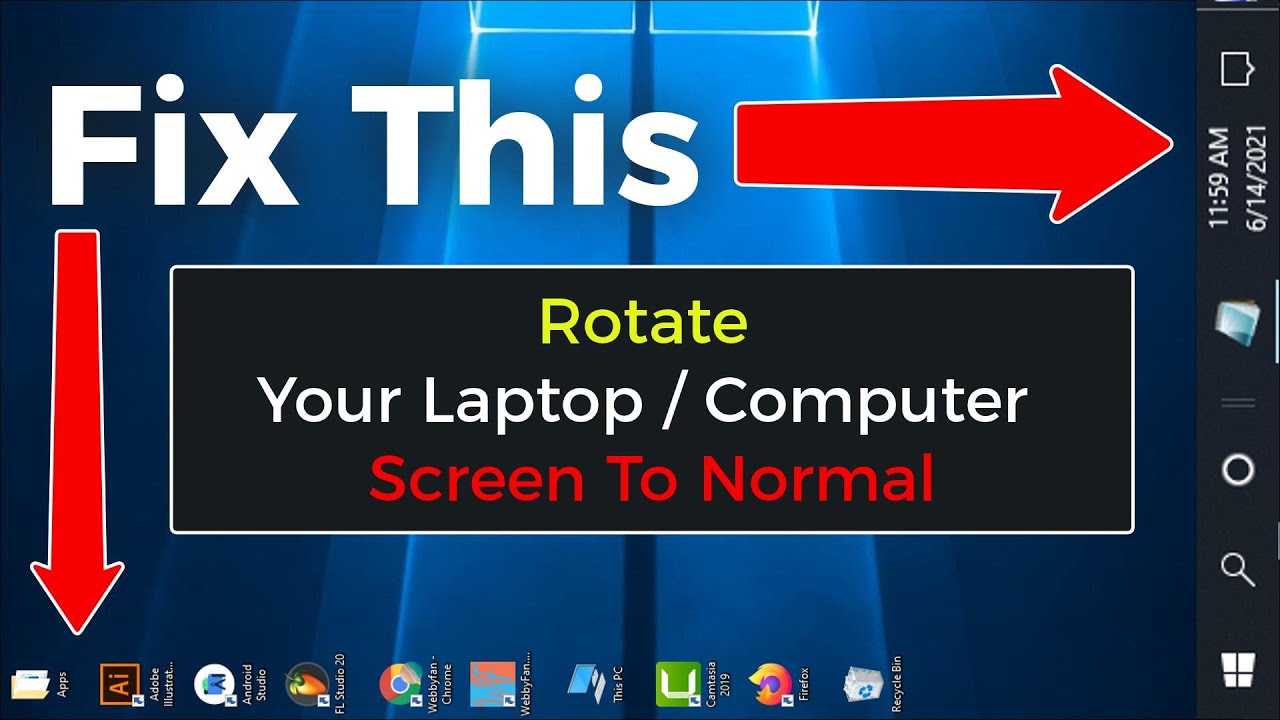
Rotate Your Laptop Computer Screen To Normal | How To Change Display Orientation in windows 10

Image
Rotate Your Laptop Computer Screen To Normal | How To Change Display Orientation in windows 10 https://youtu.be/kGUiP5G5W0c 00:00 | intro 00:12 | Method 1 Fixed by Keyboard Command 00:42 | Method 2 Fixed by Graphics Options 01:15 | Method 3 Fixed by Display settings ✪ Steps to Rotate Your Laptop Computer Screen To Normal | How To Change Display Orientation in windows 10 - Method 1: Press On Your Keyboard Ctrl + alt + 🢁 - Method 2: Right Click (any empty spot) on your desktop screen. - click on graphics options - click on rotation - click on rotate to 0 Degrees - Done. - Method 3: Right Click (any empty spot) on your desktop screen. - Click on Display Settings - go to display orientation - select landscape - done. ✪ Featured Videos: How to Rotate Laptop & Desktop Screen by Keyboard command | Change Display Orientation https://youtu.be/idAV_aTpJYE How To Return to the Normal Desktop Mode From Tablet Mode and Get...

How To Return to the Normal Desktop Mode From Tablet Mode and Get Rid of Pinned Tiles - Windows 10

Image
How To Return to the Normal Desktop Mode From Tablet Mode and Get Rid of Pinned Tiles - Windows 10 https://youtu.be/wutqYvwkuNc 00:00 | intro 00:10 | Method 1 Return to Normal Desktop Mode by Tablet Settings 01:05 | Method 2 switch to Desktop Mode by Notification Tab. ✪ Steps to Return to the Normal Desktop Mode From Tablet Mode and Get Rid of Pinned Tiles - Windows 10 - Method 1: click on settings icon ( left bottom side) - click on system - click on tablet - [ @ when i sign in box ]select never user tablet mode - [ @ when i use this device as a tablet ] select don't switch to tablet mode - click on additional tablet settings - turn off tablet mode - done. - Method 2: click on notification icon ( right bottom side) - Turn off tablet mode. - done. ✪ Featured Videos: How to Rotate Laptop & Desktop Screen by Keyboard command | Change Display Orientation https://youtu.be/idAV_aTpJYE Rotate Your Laptop Comput...

How to Rotate Laptop & Desktop Screen by Keyboard command | Change Display Orientation

Image
How to Rotate Laptop & Desktop Screen by Keyboard command | Change Display Orientation https://youtu.be/idAV_aTpJYE 00:00 | Intro 00:12 | Rotate Screen to Portrait View Mode ( 90 Degrees ) 00:42 | Rotate Screen to Portrait (Flipped) view mode ( 270 Degrees ) 01:12 | Rotate Screen to Landscape View Mode ( 0 Degrees ) 01:40 | Rotate Screen to Landscape (Flipped) View Mode ( 180 Degrees ) ✪ Steps to Rotate Laptop & Desktop Screen by Keyboard command | Change Display Orientation - Change Screen to ( 0 Degrees ): Press On Your Keyboard Ctrl + alt + 🢁 - Change Screen to ( 90 Degrees ): Press On Your Keyboard Ctrl + alt + 🢂 - Change Screen to ( 180 Degrees ): Press On Your Keyboard Ctrl + alt + 🢃 - Change Screen to ( 270 Degrees ): Press On Your Keyboard Ctrl + alt + 🢀 ✪ Featured Videos: Rotate Your Laptop Computer Screen To Normal | How To Change Display Orientation in windows 10 https://youtu.be/kGUiP5G5W0c How To Return to the Normal Desktop M...

How To Set Up A Custom Sub Domain To Blogger Blog

Image
How To Set Up A Custom Sub Domain To Blogger Blog https://youtu.be/HBLJbIhvFOI ✅ Add Custom Domain To Blogger https://youtu.be/I67un-8VN7c ✅ Steps to Set Up A Custom Sub Domain To Blogger Blog - first, we need to add a sub domain to our blogger blog. - Head Over to the blogger dashboard. - click on settings. - go to the publishing tab. - click on the custom domain. - Now, type your sub domain name. - click on save. - Now, we need to add these two c name records to our domain d n s settings page. - so first copy the first alias of the sub domain. - Now go back to our domain d n s settings page. - click on add new record. - now select c name record. - in the host tab, paste the first alias of the sub domain. - Now go back to the blogger settings page. - copy ghs.google.com. - Now go back to our domain dns settings page. - in the value tab, paste g h s dot google.com. - in the t l l tab, select 5 minute - click here to save changes. - click on add new record. - n...

How To Add Custom Domain To Blogger | Set Up A Custom Domain To Your Blogger Blog

Image
How To Add Custom Domain To Blogger | Set Up A Custom Domain To Your Blogger Blog https://youtu.be/I67un-8VN7c ✅ Get Domain For Your Blogger Blog https://bit.ly/3zHo0xM ✅ Steps to Add Custom Domain To Blogger | Set Up A Custom Domain To Your Blogger Blog - Get Domain For Your Blogger Blog 👇 https://bit.ly/3zHo0xM - park off your domain & delete redirect to @ to default domain address - Go To Blogger Settings Page. - Publishing Tab. - Click on Custom domain - now add domain with www. - now you'll get message to add cname record to your domain dns page. - add 2 cname record to your domain dns page. - Now Add 4 "A Records" to your doamin dns page. 👇 Click Here to Get A Records 👇 https://support.google.com/blogger/answer/1233387 - Now go back to blogger dashboard & turn on redirect domain & https. - Done.

How To Change Number of Posts Displayed on Blogger Home Page | Max posts shown on main page

Image
How To Change Number of Posts Displayed on Blogger Home Page | Max posts shown on main page | Number of posts on Main page https://youtu.be/jDaqHj1fNlc ✅ Steps to How To Change Number of Posts Displayed on Blogger Home Page - Open Your Blogger Dashboard - Click on Settings. - scroll down & go to the posts section. - click on Max posts shown on the main page. - Now, change the number which you want to show. - click on save. - Now the second method is. - click on layout. - Now here, - you can find blog posts widget. - click on the edit icon. - now, change the number, to display the number of posts on the Main page. - click on save. - done.

Change Max posts shown on Label Page - MAXSEO Blogger Template

Image
Change Max posts shown on Label Page - MAXSEO Blogger Template h ttps://youtu.be/MvUwhqt-j5E for default blogger home page Number of posts on Main page https://youtu.be/jDaqHj1fNlc ✅ Steps to Change Max posts shown on Label Page - MAXSEO Blogger Template - Open Your Blogger Dashboard - Click on Layout - go to Default Variables - Click on edit icon - go to postperPerPage - click on edit icon - now change the number as you like - click on save - done.

Change Number of Posts Displayed on Home Page - MAXSEO Blogger Template

Image
How To Change Number of Posts Displayed on Home Page - MAXSEO Blogger Template https://youtu.be/88Bwl7hNOoY for default blogger theme: https://youtu.be/jDaqHj1fNlc Change Max posts shown on Label Page - MAXSEO Blogger Template https://youtu.be/88Bwl7hNOoY ✅ Steps to Change Number of Posts Displayed on Home Page - MAXSEO Blogger Template - Open Your Blogger Dashboard - Click on Settings. - scroll down & go to the posts section. - click on Max posts shown on the main page. - Now, change the number which you want to show. - click on save. - Now the second method is. - click on layout. - Now here, - you can find blog posts widget. - click on the edit icon. - now, change the number, to display the number of posts on the Main page. - click on save. - done.

How To Add Blogger To Google Search Console | Submit Your Blogger Blog to Google Search Console

Image
How To Add Blogger To Google Search Console | Submit Your Blogger Blog to Google Search Console https://youtu.be/w4KaiqlnqSw 00:00 | Intro 00:22 | Tutorial Start 00:44 | Add Blogger to Google Search Console 01:12 | Add Sitemap 01:53 | Check Indexed Blog Links 03:03 | Check Your Blog Google Search Traffic ✅ Steps to Add Blogger To Google Search Console - login to Google Search Console Account - Click on Add property. - now copy your blogger blog link URL. - & paste in URL box. - click on continue. - Now our blog ownership is verified - click on go to property. - Now first off all, - we need to add a sitemap, so that the search console index our blog post automatically on google search. - click on sitemaps. - Now we need to type sitemap.xml - click on submit. - now our blog site map successfully added. - done. # Add Meta Tags In Blogger https://youtu.be/Ty2YZNYbOGI

How to Add Meta Tags In Blogger | Meta Tags Blogger Home Page, Posts | Enable Search Description

Image
How to Add Meta Tags In Blogger | Meta Tags Blogger Home Page, Posts | How To Enable Search Description In Blogger https://youtu.be/Ty2YZNYbOGI 00:00 | Intro 00:50 | Enable Visibility of your blog to Search Engines 01:14 | Add Meta Tags for Home Page 02:25 | Add Meta Tags for Posts ✅ Steps to Add Meta Tags in Blogger | Enable Search Description - Open Blogger Dashboard - Click on Settings. - Scroll down & go to meta tags - click here to enable search description. - once you enable search description, it will also enable search description for posts & pages. - click on search description to add description. - Now Add Search Description for Blogger home page. - To Add Meta tags for your posts & pages. - simply go to post or page where you want to add search description. - Once you are on post editor, you can see search description option in right side. - add your post description, please add post keywords in description. - update the post. # Add Blogge...

How To Add Google AdSense code in head tags on Blogger Website

Image
How To Add Google AdSense code in head tags Blogger Website https://youtu.be/9a697NdIbAU ✅ Steps to Add Google AdSense code in head tags on Blogger Website - Copy the Google AdSense Code - Go Back to Blogger dashboard - Click on theme - Click on Customize. - Click on Edit Theme - now click anywhere in this html code. - now press control F in your keyboard. - now you can see the search box. - simply type here closing head tags. - now press enter on your keyboard. - now you can see the head tag with highlighted color. - now paste your google AdSense code above this tag. - now, update the theme file. - now we successfully added google AdSense code in our blogger website.

Custom Contempo Blogger Theme ( Responsive Featured Image + Responsive YouTube Video Size )

Image
Custom Contempo Blogger Theme ( Responsive Featured Image + Responsive YouTube Video Size ) https://youtu.be/CIfraN-MbN8 ✅ Get Edited Contempo Blogger Theme: Click here ✅ Get Responsive YouTube Embed Code: Copy This Embed Code and add in blog post Click to Copy ✅ How To Make Free Blog Website for YouTube Channel https://youtu.be/FRtTySVpuGM ✅ How To Create Free Blog Website https://youtu.be/oFTHEpr3cDo
How To Hide Featured Image in Blogger Blog Post

Image
How To Hide Featured Image in Blogger Blog Post https://youtu.be/YVX8TlJ3ac0 LIKE & Comment if This Video Helpful. ✅ Steps to Hide Featured Image in Blogger Blogpost - Open Blogger Dashboard - Click on the post & go to post editor - Now Simply Switch to HTML View. - Go to First line of the post, click on add image icon. - Simply choose image from the options, this method works for all options. - Once you added the featured image, simply go to Featured Image Code. - in the code, you can find style tag, - in the style tag you can find "display: block;" - just replace the block by none. - update the post - done, now featured image hide from the post.