Posts

Showing posts from July, 2021

Text Code Box With Click to Copy Button - Copy to Clipboard in Blogger

Image
Text and Code Box With Click to Copy Button | Copy to Clipboard in Blogger https://youtu.be/5eWyPKNwUiY ✅ Steps to add Text and Code Box With Click to Copy Button | Copy to Clipboard in Blogger - First of all, open the blog post, - we provide this post link in the video description. - copy this j s code. - now, go to your blogger dashboard. - click on theme. - click on customize. - click on edit html. - now simply click anywhere in the theme code. - now, press control f on your keyboard. - now, you can see the search box. - simply type close head tag - Press Enter. - now, you can see close head tag. - simply paste js code above this close head tag. - click on save. - now go back to the post. - copy this script code. - head over to edit template page. - now we need to paste the JS script code above close body tag - to find a close body tag. - simply click anywhere in the theme code. - now, press control f on your keyboard. - now, you can see search box. - s...


Add YouTube Playlists videos in Blogger - How to Embed YouTube playlists video on Blogger

Image
Add YouTube Playlists videos in Blogger / How to Embed YouTube playlists video on Blogger https://youtu.be/Qa-G4oGfXsU ✅ Best Way to Add YouTube Video in Blogger https://youtu.be/xLXEhCXDfFk ✅ Benefits To use This Method - Responsive YouTube Videos Size in Any Device. - Show Only Your Related Videos when Viewer Pause the video. - Show Only Your Videos at the End of the video. ✅ Steps to Add / Embed YouTube Playlists videos in Blogger - open the YouTube playlists which you want to add in post. - click on share. - click on embed. - now, copy this embed code. - open the post where you want to add the playlists. - click on html view. - now paste the code. - now update the post. - now here you can see we added YouTube playlists in blogger. - here you can see that, playlists embed but it's not fits to the post layout. why it's happen because this embed code is not responsive by device. so if you want to add YouTube playlists with responsive size. - then follow...

How to Embed AutoPlay YouTube video in Blogger Blog Post

Image
Embed AutoPlay YouTube video | How to Embed YouTube video in Blogger to AutoPlay the video https://youtu.be/hE1-c2KE1b8 ✅ Best Way to Add YouTube Video in Blogger https://youtu.be/xLXEhCXDfFk ✅ Add This 👇 for AutoPlay video ?&autoplay=1 ✅ Add This 👇 for AutoPlay video and show only your related video while viewer pause the video & end of the video 👇 ?&autoplay=1&rel=0 ✅ Steps to Embed YouTube video in Blogger to AutoPlay the video - Open the Video which you want to embed in Blogger - click on share. - click on embed. - now copy this embed video code. - now, head over to the blogger dashboard. - click on the post where you want to add video. - click on html view. - now paste the embed code - now, in this code, you can see video embed link. - simply add the following tag at the end. - make sure you add after video ID. - simply go to the end of the video ID. - NOW TYPE ?&autoplay=1 - NOW update the post. - Done

How To Add Buttons in MAXSEO Blogger Blog Post

Image
How To Add Buttons in MAXSEO Blogger Blog Post, Get Demo Buttons, Download Buttons, Buy now Buttons, Visit a link Buttons. https://youtu.be/Ew5kKe_RoHg ✅ Steps to Add Buttons in MAXSEO Blogger Blog Post - Open this post: https://bit.ly/3xeocCm - Copy the button code - open the post where you want to add buttons - paste the code - in this button code, you can see add here your button link, - simply remove it and type your button link. - now, remove this add here your button text. - and type your button text. - now update your post. - now, if you want to open the button link in the new window, not on the same page. - then simply go back to the post editor. - now click on the button link. - click on the edit icon. - click on advanced. - tick mark on open this link in the new window. - if you want to keep this link as nofollow, - then tick mark on add rel nofollow attribute. - click on apply. - now update your post. - done. ✅ Simple Button Button Small Add...

Best Way to Add YouTube Video in Blogger - How to Embed YouTube Video on Blogger

Image
Best Way to Add YouTube Video in Blogger | How to Embed YouTube Video on Blogger https://youtu.be/xLXEhCXDfFk ✅ Benefits To use This Method - Responsive YouTube Videos Size in Any Device. - Show Only Your Related Videos when User Pause the video. - Show Only Your Videos at the End of the video. ✅ Steps to Add / Embed YouTube Videos in Your Blogger Blog Post - First Copy the CSS Code Which We Provide in this post. - Head Over to Blogger Dashboard. - Select your blog. - click on Layout - click on Theme Designer - Click on Advanced - Now select "ADD CSS" from the drop down menu - Now Paste the CSS Code - Copy the Embed code which we provide in this post. - Go Back to Blogger Dashboard. - Open the post where you want to ADD or EMBED YouTube Video. - Now Simply Remove VID-ID (from Embed code) and add Your Video ID. - Publish or Update Your Post - Done, Now You can see Responsive YouTube Video on the Post. ✅ Please Note - You Need to Add CSS Code only o...

How to Create Universal Analytics Property in Google Analytics

Image
How to Create Universal Analytics Property in Google Analytics https://youtu.be/UMmwMUknZic ✅ Steps To Create Universal Analytics Property in Google Analytics - Open Google Analytics - Login to Your Account - Select Account for your website - click on create property. - type name of your website. - select reporting time zone. - select currency. - click on show advanced options. - turn on Create a Universal Analytics property. - now type your website link. - now if you already created google analytics 4 property. - then select Create a Universal Analytics property only. - click on next. - Now select the category for your website. - select your business size. - select the options which you want to use in google analytics. - click on create. - Now we successfully created Universal Analytics property for our website. ✅ How To Add Google Analytics to Blogger Blog ✅ How To Add Blogger To Google Search Console | Submit Your Blogger Blog to Google Search Console ✅ H...

How to Link Google AdSense with Google Analytics

Image
How to Link Google AdSense with Google Analytics https://youtu.be/OVCHWVH1Odo ✅ how to create Universal Analytics property ✅ Steps To Link Google AdSense with Google Analytics -first of all, make sure we created Universal Analytics property in Google Analytics. - Now, open google analytics. - click here, - click on Universal Analytics property for our website. - click on all web site data. - click on admin. - go to the product linking section. - now if you want to check your AdSense earning in google analytics. - then click on behavior. - click on publisher. - Now you can view your AdSense earning by website pages & referring domains. ✅ How To Add Google Analytics to Blogger Blog ✅ How To Add Blogger To Google Search Console | Submit Your Blogger Blog to Google Search Console ✅ How to Add Meta Tags In Blogger | Meta Tags Blogger Home Page, Posts | Enable Search Description

How to Link Google Analytics to Google Search Console | Connect Search Console to Analytics

Image
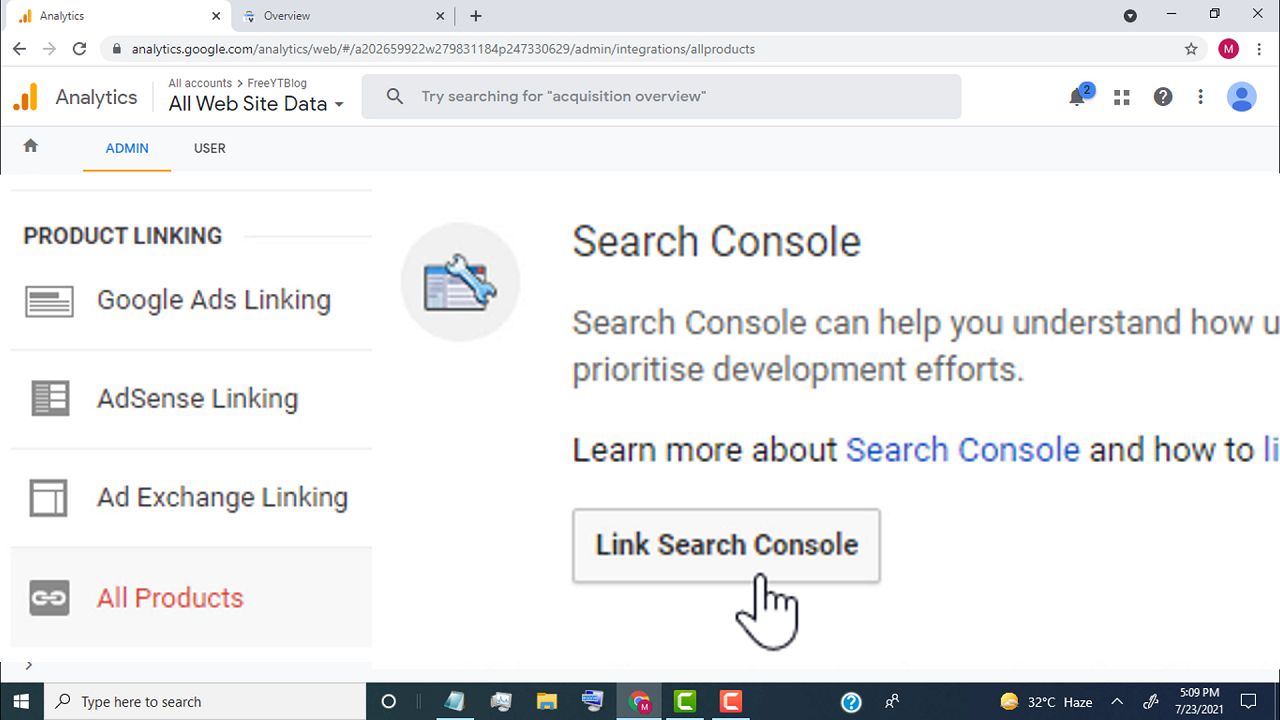
How to Link Google Analytics to Google Search Console | Connect Search Console to Analytics https://youtu.be/yoR2Mdn77GI ✅ Create Google Analytics Account https://youtu.be/7NHSz-6Q3xU ✅ Create Google Search Console Account https://youtu.be/HiNZf25Jrro ✅ Steps to Link Google Analytics to Google Search Console - make sure we created Google Search Console & Universal Analytics property for our website. - Now first, open google analytics - click here - and click on the account - click on Universal Analytics property for our website - click on all web site data - click on admin - go to the product linking section - click on all products - scroll down - go to the search console tab - click on the link search console - click on add - click on select property - Now select your website - click on continue - click on associate - now we successfully linked google search console to google analytics - now if you want to check search traffic in google analytics - sim...

How To Create Google AdSense Account for Your Website

Image
How To Create Google AdSense Account for Your Website https://youtu.be/6JQWWHszkRc ✅ Steps to Create Google AdSense Account for Your Website - First of all, search for google AdSense. - open this link. https://www.google.com/adsense/start/ - click on get started. - now, type your website URL. - type your email address. - click on yes if you want email updates from AdSense. - click on save and continue. - now select your country. - accept the terms and conditions if you agree. - tick on yes. - click on create account. - now our google AdSense account is created. - click on get started. - now we need to add our payment address details. - first select the account type. - type your mail address. - click on submit. - now we need to add verification code on our website. - so simply copy this code and paste it into the Html of our website. - make sure you paste the code in head tags. - once you add code in your website. - then come back to this page and tick mark on ...

How To Create Google Search Console Account for Your Website

Image
How To Create Google Search Console Account for Your Website ( Blogger + WordPress ) https://youtu.be/HiNZf25Jrro ✅ Steps to Create Google Search Console Account for Your Website ( Blogger + WordPress ) - First of all, search google search console - Open this link https://search.google.com - Click on Start now - now copy your website link url ( your website homepage ) - paste the link in URL Prefix on Google search console. - Click on Continue - now search console try to verify your ownership for the domain - once it verified, google search console create account for your website. ✅ How To Add Google Analytics to Blogger Blog ✅ How To Add Blogger To Google Search Console | Submit Your Blogger Blog to Google Search Console ✅ How to Add Meta Tags In Blogger | Meta Tags Blogger Home Page, Posts | Enable Search Description

How To Create Google Analytics Account for Your Website

Image
How To Create Google Analytics Account for Your Website ( Blogger + WordPress ) https://youtu.be/7NHSz-6Q3xU ✅ Steps to Create Google Analytics Account for Your Website ( Blogger + WordPress ) - First of all, search for google analytics - open this link https://analytics.google.com - click on start measuring. - now, first we need to set up account, - so type your website name here. - click on next. - now we need to set up a property for our website. - so type your website name in property name tab. - select reporting time zone. - select currency. - click on show advanced options. - turn on create a Universal Analytics property. - type your website link in website url box. - make sure you select create both google analytic 4 and a Universal Analytics property. - click on next. - now we need to provide our website information. - First select our website category. - select our business size. - select the options which you want to use in google analytics. - click on...

Fixed Can't find Google AdSense Linking option in Google Analytics

Image
Fixed Can't find Google AdSense Linking option in Google Analytics https://youtu.be/PYXkvTwAPc0 ✅ Steps Fixed Can't find Google AdSense Linking option in Google Analytics - First of all open your google analytics. - select your website from here. - Now go to the property section. - click on the create property. - type name of your website. - select reporting time zone. - select currency. - click on show advanced options. - turn on Create a Universal Analytics property. - now type your website link. - now if you already created google analytics 4 property. - then select Create a Universal Analytics property only. - click on next. - Now select the category for your website. - select your business size. - select the options which you want to use in google analytics. - click on create. - Now we successfully created Universal Analytics property for our website. - now go to product linking options. - click on AdSense linking. - select AdSense for content. - ...

Fixed Can't find Google Analytics property in Google Search Console

Image
Fixed Can't find Google Analytics property in Google Search Console https://youtu.be/73dBLZ46bHs ✅ Steps To Fixed Can't find Google Analytics property in Google Search Console - First we need to create Universal Analytics property on Google Analytics - login to google analytics account - select account - go to property tab & click on create property. - type name of your website. - select reporting time zone. - select currency. - click on show advanced options. - turn on Create a Universal Analytics property. - now type your website link. - now if you already created google analytics 4 property. - then select Create a Universal Analytics property only. - click on next. - Now select the category for your website. - select your business size. - select the options which you want to use in google analytics. - click on create. - Now we successfully created Universal Analytics property for our website. - now simply go back to google search console. - reloa...

How to Take Screenshot on a Laptop or PC Using Snip & Sketch Any Windows

Image
How to Take Screenshot on a Laptop or PC Using Snip & Sketch Any Windows https://youtu.be/etOKbJBV6Ws Take screenshot by Fullscreen Snip, Rectangular Snip, Freeform Snip, Window Snip ✪ 3 Easy Ways to Take Screenshot on a PC and Laptop https://youtu.be/gbJr0Cv95n8 ✪ Steps to Take Screenshot on a Laptop or PC Using Snip & Sketch - Open the Screen or Page Where you want to take screenshot - Now We Need to Open Snip & Sketch App - To Open Snip & Sketch App by Short key Windows Logo Key + Shift + S - or Simply click on start icon and search Snip & Sketch - click on the app - Click on new ( top left corner ) - now open screen snipping on the page - Simply Take screenshot by Fullscreen Snip, Rectangular Snip, Freeform Snip, Window Snip - Now Edit Screenshot with Touch Writing, Ballpoint Pen, Pencil, Highlighter, Ruler Eraser, image crop - Click on Save As ( top right corner) - Save Screenshot as your desire location - Done.

How To Enable / Disable The PrtScn button to open screen snipping ( Windows )

Image
How To Enable Disable The PrtScn button to open screen snipping ( Windows ) https://youtu.be/U53kZuSbzVI ✪ 3 Easy Ways to Take Screenshot on a PC or Laptop https://youtu.be/gbJr0Cv95n8 ✪ Steps to Enable / Disable The PrtScn button to open screen snipping - Click on Start Button - Click on Settings - Click on Ease of Access - Click on Keyboard - Go To Print Screen Shortcut - Turn on to Enable or Turn off to Disable - Done.

Where's Screenshot Saved in Laptop PC Windows

Image
Where's Screenshot Saved in Laptop PC Windows https://youtu.be/epUzxkcGxNI screenshot save location windows 10 ✪ 3 Easy Ways to Take Screenshot on a PC or Laptop https://youtu.be/gbJr0Cv95n8 ✪ Default Location For Screenshots Pictures Folder / Screenshots Folder ✪ Steps to Where's Screenshot Saved in Laptop PC Windows - Click on Start button & Search for Screenshots - Now you can see screenshots folders on results - simply click on the folder to get all your screenshots which you took by pressing "Window logo key" + PrtScn"

Send 500 Emails At Once Using Gmail Mail Merge | Free Email Marketing

Image
Send 500 Emails At Once Using Gmail Mail Merge | Free Email Marketing https://youtu.be/klqBjyydmCM Send bulk email from Gmail ✪ Steps to Send 500 Emails At Once Using Gmail Mail Merge Step 1: Compose Mail & Draft it -Open Your Gmail -Click Here to Compose Mail - Don't Add Recipients - Type Your Email Subject - Add {{Given Name}} For First Name, {{Given Name}} is Short code to Add First Name of Recipients Automatically from Data - Add {{Family Name}} For Last Name {{Family Name}} is Short code to Add Last Name of Recipients Automatically from Data - Add Your Message, Image, Link ECT - Now, Our Mail is Ready, Leave As It is & Save As Draft Step 2: Create Google Sheet for Emails - Search for Google Docs - Click on Sheets - click here to go to google sheets - Click on Blank - Type Name for Email Sheet Step 3: Add Mergo Mail Merge Add-ons to the sheet - Click on Add-ons - click on get Add-ons - Search Here: Mergo Mail Merge - Click on Mergo EMail Market...

How To Add Google Analytics to Blogger Blog

Image
How To Add Google Analytics to Blogger Blog https://youtu.be/MbJ6LCGgcMc ✅ Steps To Add Google Analytics to Blogger Blog - First of all open google analytics. https://analytics.google.com - Login to Your Google Account - Click on Start Measuring - Now first we need to create an account for our Blog. - simply type your blog name. - tick mark on google products & services. - click on next. - now we need to set up a property for our blog. - type your blog name in the property name box. - select reporting time zone, - select the currency for your blog. - click on next. - now we need to add our blog information. - first select category for our blog. - now choose our blog size, which means how many people work in our blog. - now select what you want to track for your blog. - click on create. - now select the country where you live. - accept the terms & conditions if you agree. - click on i accept. - If you need email updates then select the option as you li...

How To Hide Post Breadcrumb MAXSEO Blogger Template

Image
How To Hide Post Breadcrumb MAXSEO Blogger Template https://youtu.be/bRizmsG8JSM ✅ Get The Code: https://bit.ly/2TYbFFp ✅ Steps To Hide Post Breadcrumb on MAXSEO Blogger Template - First Copy the code from our website - Head Over to Blogger Dashboard. - Click layout - Click on theme designer - Click on Advanced option - Click on Add CSS. - Now Paste the code - Click on save. ✅ MAXSEO Blogger Theme Tutorials https://www.youtube.com/playlist?list=PL9bElQa0pIJx_X-2BlCXqW9HdgPGH4KWF ✅ Blogger Tutorials https://youtube.com/playlist?list=PL9bElQa0pIJx_X-2BlCXqW9HdgPGH4KWF ✅ Add Custom Domain To Blogger https://youtu.be/I67un-8VN7c ✅ Add Blogger To Google Search Console https://youtu.be/w4KaiqlnqSw ✅ Add Meta Tags In Blogger https://youtu.be/Ty2YZNYbOGI ✅ Make Free Website for YouTube Channel https://youtu.be/FRtTySVpuGM ✅ How To Make Free Blog Website https://youtu.be/oFTHEpr3cDo